Demo guide: presenting NetMap¶
A ready-to-use script for showing NetMap to a class, an evaluator, an interviewer or a team. It has a 5-minute version and a 15-minute version, a pre-demo checklist, a backup plan, and answers to the questions people usually ask.
- Before the demo (checklist)
- The story in one sentence
- 5-minute demo
- 15-minute demo
- If something goes wrong
- Questions you'll probably get
Before the demo (checklist)¶
Do these the day before, not five minutes before.
- Run NetMap once on the demo laptop (double-click
NetMap.command/start.bat). The first run installs dependencies and needs internet for about a minute. - Try "Watch live" once and enter your password, so macOS shows the prompt and you know it works on that network.
- Turn off your VPN, or every connection will appear to go to the VPN server.
- Check the internet connection at the venue. Map tiles and the chart library load from the internet. Without it, the panels still work but the map background is blank (see backup plan).
- Export an offline report of the sample (
Export → Interactive report) and keep it on the desktop as a backup. - Open a few websites in another browser window that you'll use during the live part, e.g. YouTube, Wikipedia, a news site and a shopping site.
- Close private tabs, email and chat. Live capture shows the names of every site this computer talks to, on the projector.
- Zoom the browser to 110–125 % so people at the back can read it.
- Optional: put a free
.mmdbGeoIP database in the folder so IPv6 hosts also appear on the map.
The story in one sentence¶
"Every time you open a website, your computer quietly talks to dozens of servers around the world. NetMap captures that traffic and shows who you're talking to, where they are, how much data goes there, and whether it's safe."
Keep coming back to those four words: who, where, how much, safe.
flowchart LR
    A["1 · Problem<br/>traffic is invisible"] --> B["2 · Sample<br/>the map, the names"]
    B --> C["3 · Live<br/>open YouTube, watch it appear"]
    C --> D["4 · Security<br/>demo-alerts.pcap"]
    D --> E["5 · Export<br/>Google My Maps / report"]
    E --> F["6 · How it works<br/>architecture slide"]
5-minute demo¶
| Time | Do this | Say this |
|---|---|---|
| 0:00 | Show the welcome screen. | "This is NetMap. I built it to answer a simple question: when I use the internet, where does my data actually go?" |
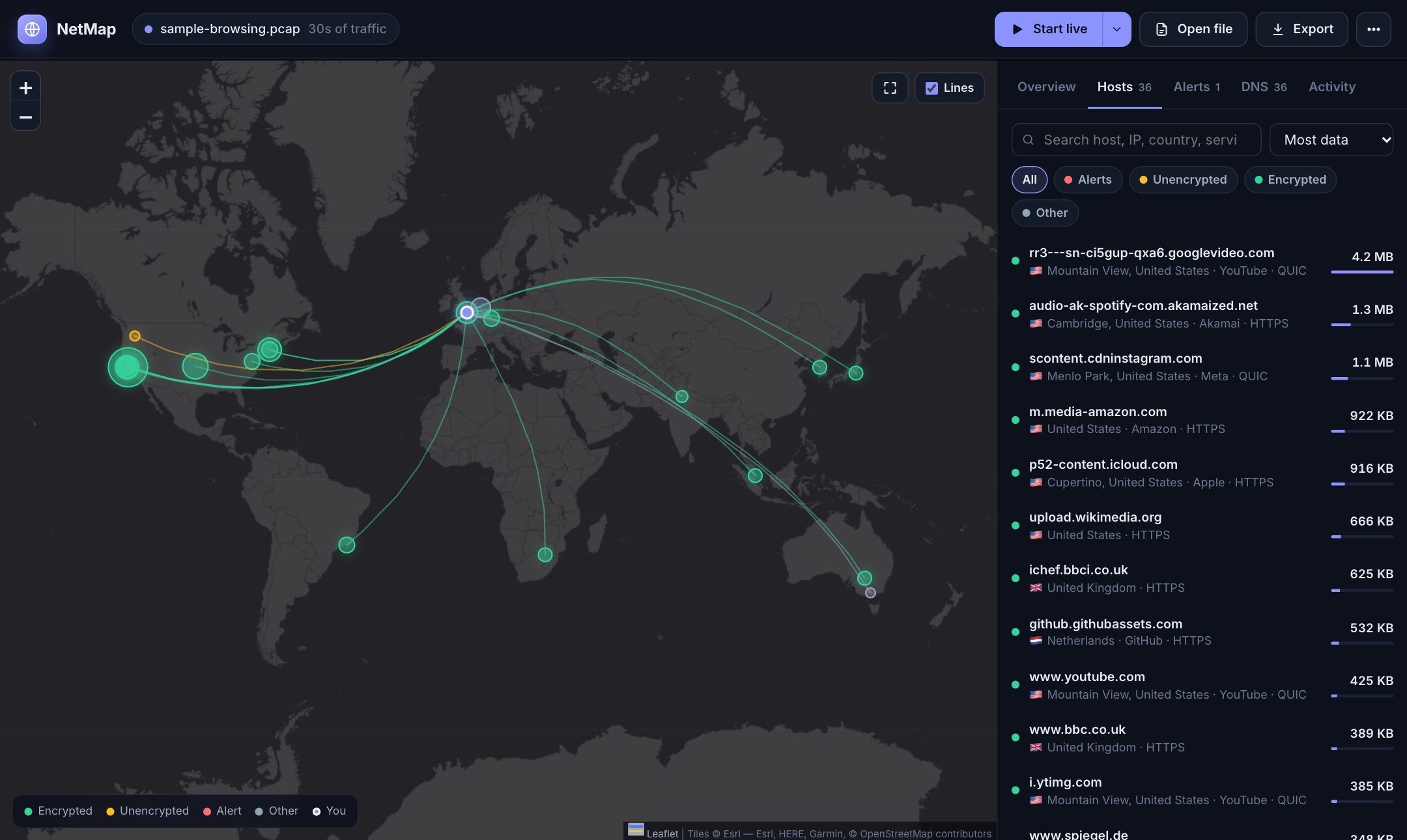
| 0:30 | Click Try the sample. | "This sample is 30 seconds of a home network: a laptop browsing Wikipedia, YouTube, GitHub, news sites and Amazon while a phone syncs in the background, almost 13,000 packets. It's simulated, so no one's real data is shown, but it looks exactly like a real capture." |
| 1:00 | Point at the map and the lines. | "Each dot is a server my laptop talked to, sized by how much data went there. In 30 seconds this home touched 36 servers in 11 countries." |
| 1:30 | Open Hosts, click the top host. | "NetMap shows real names, not just IP addresses. The biggest one is rr3---sn-…googlevideo.com: that's the YouTube video itself. It gets these names from DNS lookups and from the site name in the HTTPS handshake, without decrypting anything." |
| 2:15 | Point at the green colour. | "Green means encrypted. Almost everything today is HTTPS or QUIC." |
| 2:30 | Open ⋯ → Sample captures → demo-alerts.pcap, then the Alerts tab. | "This second file is synthetic, built to show the security side: a port scan, a backdoor port, Telnet, unencrypted HTTP and FTP, a malware-style random domain, and DNS tunnelling. NetMap flags each one and explains it in plain English." |
| 3:30 | Click Start live (enter password), then load a website in another window. | "Now live, on this laptop. I'll open YouTube... and there it is, appearing on the map in real time." |
| 4:30 | Export → Google Maps / Earth (or show the HTML report). | "Everything can be exported: an offline report, a KML for Google My Maps, CSV for Excel. And it all runs locally: nothing is uploaded." |
| 5:00 | Stop. | "Questions?" |
15-minute demo¶
Use the 5-minute flow, and expand these parts.
Part 1: The problem (1 min)¶
- Ask the audience: "How many servers do you think your laptop talks to when you open one shopping website?" Most people guess 2–5. A single real Amazon or news page often loads from 20–80.
- Mention that Wireshark can show this, but as thousands of rows of hex. NetMap turns it into a map and plain-English answers.
Part 2: Tour of the sample (3 min)¶
Click Try the sample and walk through each panel:
| Panel | What to show |
|---|---|
| Overview | KPI cards (data, hosts, countries, packets, your devices, alerts). The throughput chart shows bursts as pages load. Top destinations, Services (QUIC vs HTTPS: Google uses QUIC heavily), Countries, Devices on your network. |
| Map | Click a cluster to see the hosts at that location. Use the expand button to fit everything, and the Lines toggle. |
| Hosts | Search for google, filter by status chips, sort by data / packets / recent / name. |
| Host detail | Location, data sent vs received, ports, which of your devices talked to it, the plain-English explanation, and the Who owns this IP? link. |
| DNS | "Every name this computer looked up, including ad and analytics trackers that load in the background." Search for analytics or ads. |
| Activity | Feed of new connections, newest first. |
Part 3: Live capture (3 min)¶
- Click the ▾ next to Start live to show the interface menu and the optional capture filter (e.g.
not port 22). - Click Start live. Explain the password prompt: "Only a tiny 145-line helper gets admin rights to read the network card. The web server itself never runs as admin." (See how-it-works §10.)
- In another window, open YouTube, then Wikipedia. Hosts appear within about a second, and lines animate while live.
- Open the Activity tab to show connections arriving.
- Click Stop.
Part 4: Security (3 min)¶
Open ⋯ → Sample captures → demo-alerts.pcap → Alerts.
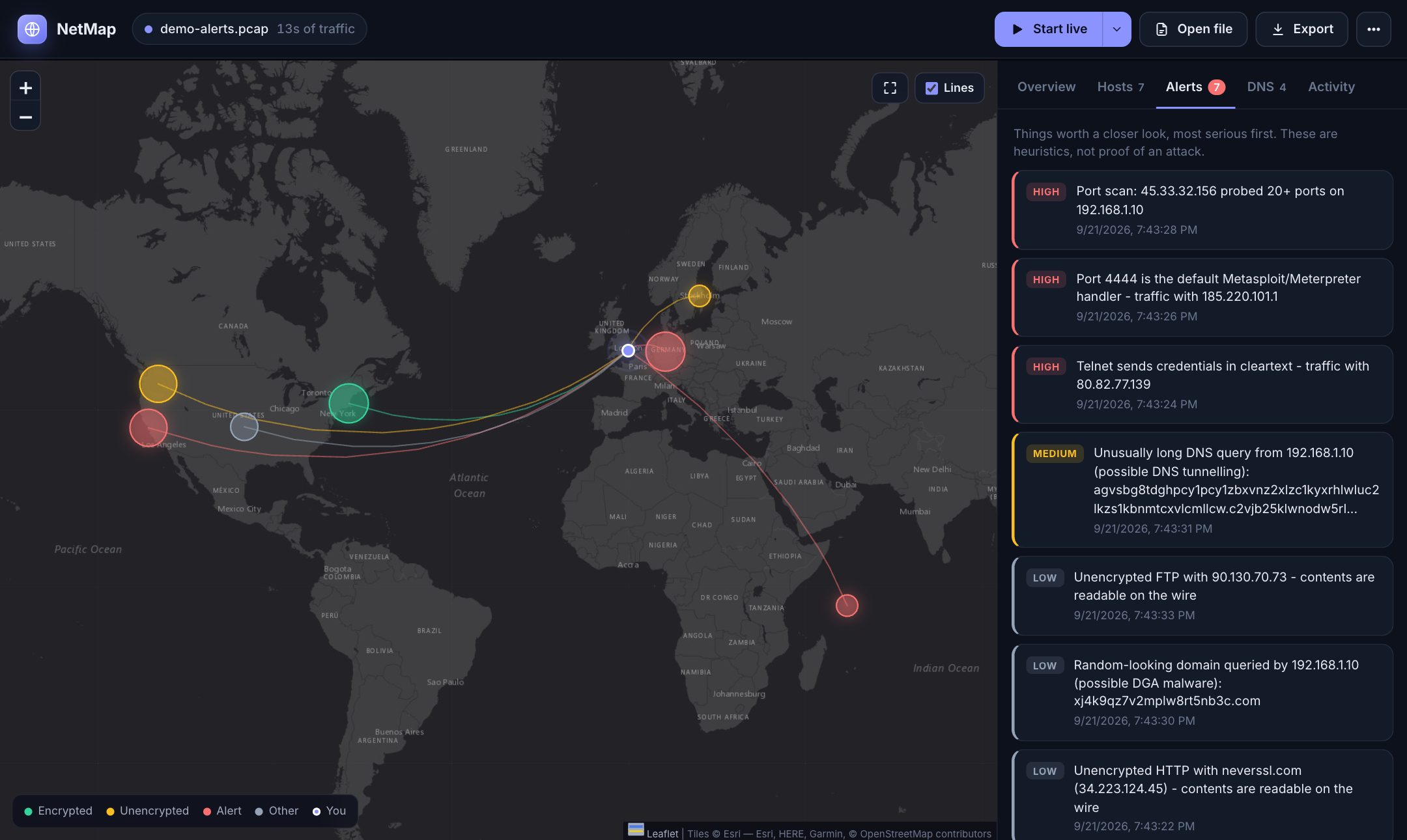
Walk through them, most serious first:
| Alert | Explain it like this |
|---|---|
| Port scan (high) | "Someone on the internet knocked on 25 different doors of this computer in a fraction of a second. That's reconnaissance." |
| Port 4444 (high) | "4444 is the default port of Metasploit, a hacking tool. Traffic on it is a red flag." |
| Telnet (high) | "Telnet sends your password in plain text." |
| DNS tunnelling (medium) | "This DNS name is over 100 characters. That's a known trick for smuggling data out through DNS." |
| Random domain / DGA (low) | "Malware often generates random domain names to find its server. NetMap measures how random a name is (Shannon entropy)." |
| Unencrypted HTTP / FTP (low) | "Anyone on the same Wi-Fi could read this." |
Click the red Germany host to show the host detail, with the alert attached.
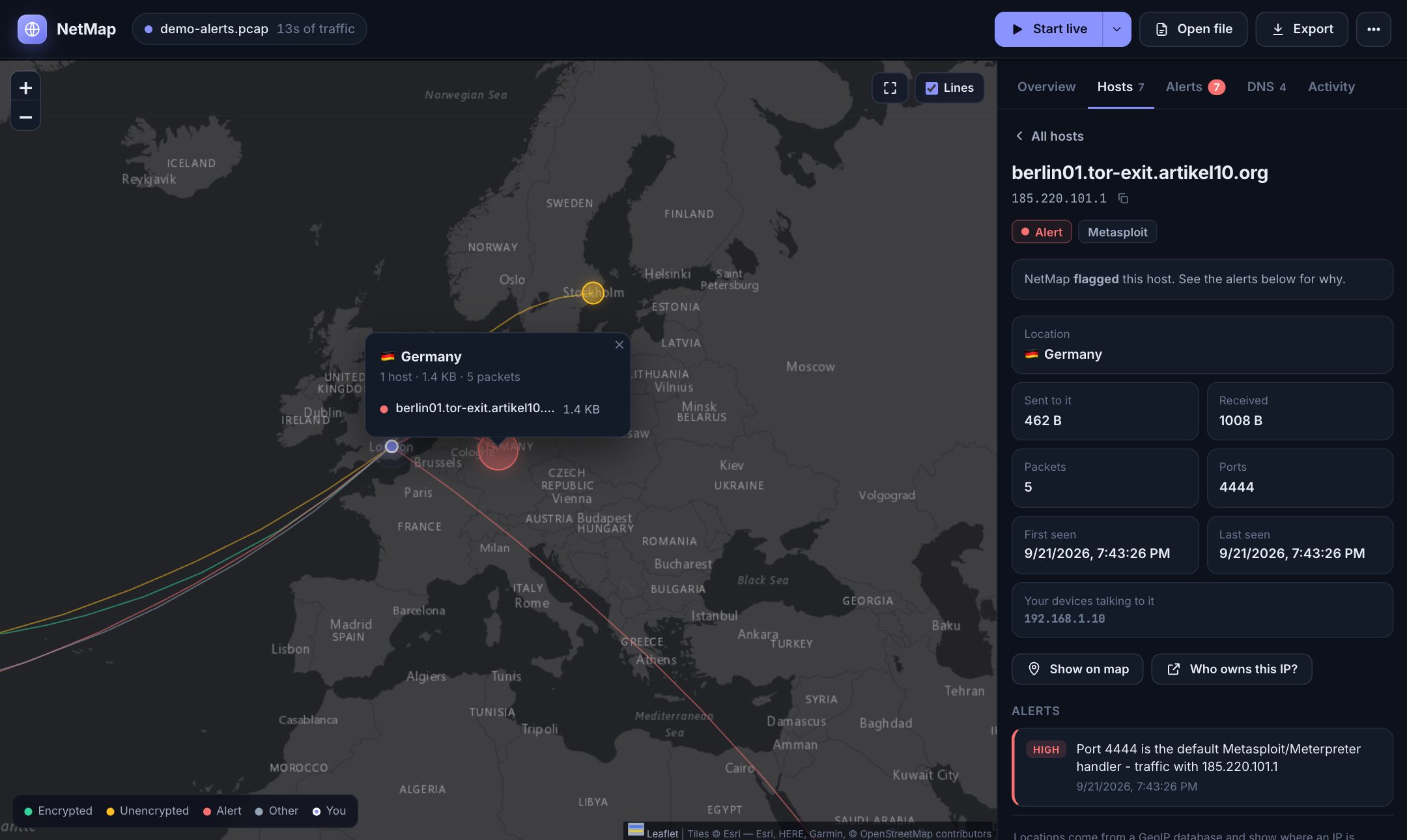
Say clearly: "This capture is synthetic, made for the demo. The generator script is in the repo."
Part 5: Exports (2 min)¶
- Interactive report: open the downloaded
.htmlfile to show it works offline with the full UI. - KML: import it at google.com/mymaps → Create a new map → Import. This is the "Google Maps" part of the project title.
- CSV: open it in Excel or Sheets.
Part 6: How it's built (3 min)¶
Show the diagram in how-it-works §2 and explain:
1. Packets in: live (Scapy, or the root helper via libpcap) or files (dpkt).
2. Analysis: names from DNS, TLS SNI and HTTP, locations from GeoIP, rule-based alerts.
3. Out: Flask + Socket.IO pushes a JSON snapshot every second, and the browser draws it with Leaflet and Chart.js.
4. Quality: 19 automated tests and CI on Linux, macOS and Windows.
5. Command line: python main.py sample-browsing.pcap produces every report without the UI.
If something goes wrong¶
| Problem | Do this |
|---|---|
| No internet at the venue | The analysis still works. Only the map background, chart and fonts need the internet. Open the offline HTML report you exported in advance. If the CDN libraries can't load, show the screenshots in docs/images/. |
| The demo laptop won't start NetMap at all | Open the live demo on the project website: it's the real dashboard with the sample data, and it runs in any browser. |
| Password prompt doesn't appear or is cancelled | Use the sample and demo-alerts.pcap: they show everything except "live". You can also start with ./run_dashboard.sh --sudo from a terminal. |
| Live capture shows almost nothing | You're probably on the wrong interface. Click ▾ and choose Wi-Fi (en0 on most Macs). Also check that the VPN is off. |
| Everything goes to one country | VPN or proxy is on. |
| "You" is in the wrong city | Your ISP's IP is registered elsewhere. Start with --home 12.97,77.59 (your lat,lon). |
| Port 5050 busy | NetMap automatically uses the next free port. Read the URL in the terminal window. |
| Many hosts "location unknown" | They're IPv6. Add a free .mmdb database (how). |
Questions you'll probably get¶
Is this legal / safe to run? Yes, on your own computer and network. Only capture networks you own or have permission to monitor. NetMap is read-only: it never blocks, changes or sends traffic.
Can it see my passwords or the content of HTTPS pages? No. HTTPS and QUIC are encrypted. NetMap only sees who you talk to, how much, and the site name sent in the clear during the TLS handshake. Unencrypted protocols (HTTP, FTP, Telnet) are readable on the wire, which is exactly why NetMap flags them.
How accurate are the locations?
Country-level is usually right. City-level is approximate. A location is where an IP is registered or hosted, often a CDN server near you rather than the company's headquarters. The bundled database is old, and a free current .mmdb makes it more accurate.
How is this different from Wireshark? Wireshark is the professional tool for inspecting individual packets. NetMap is for the big picture: it summarises thousands of packets into hosts, names, locations and alerts that anyone can understand. It also reads Wireshark's files.
Is it an intrusion detection system? No. The alerts are simple, explainable heuristics, meant for learning and triage. Real IDSs (Suricata, Zeek, Snort) use large signature sets and protocol analysis.
Does it send my data anywhere?
No. It makes one request to find your public IP (api.ipify.org, which you can disable) and reverse-DNS lookups through your normal resolver (also optional). The browser loads map tiles and libraries.
Why does the web app need a password? Reading raw packets needs admin rights on every OS. NetMap gives those rights only to a small helper, not the web server (details).
What would you add next? Ideas: standalone installers so Python isn't needed, process names (which app made each connection), threat-intelligence IP blocklists, and comparing two captures.