Visual tour
Every screen of NetMap, using the two sample captures that come with it. Both are synthetic: an imaginary home network, so no real person's traffic is shown.
1. Welcome screen
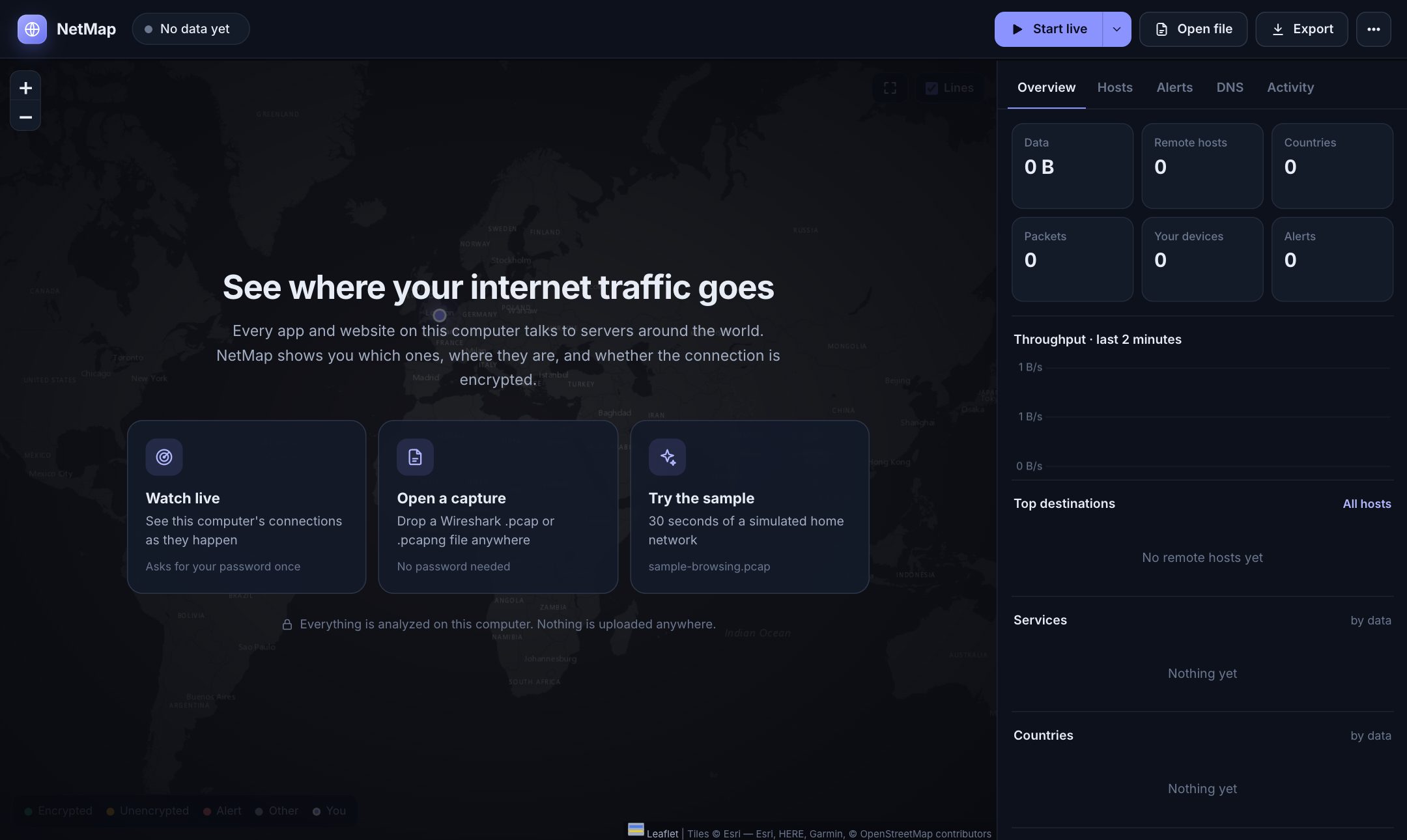
Three ways to start: watch this computer live, open a Wireshark capture, or try the sample.
2. The map and overview
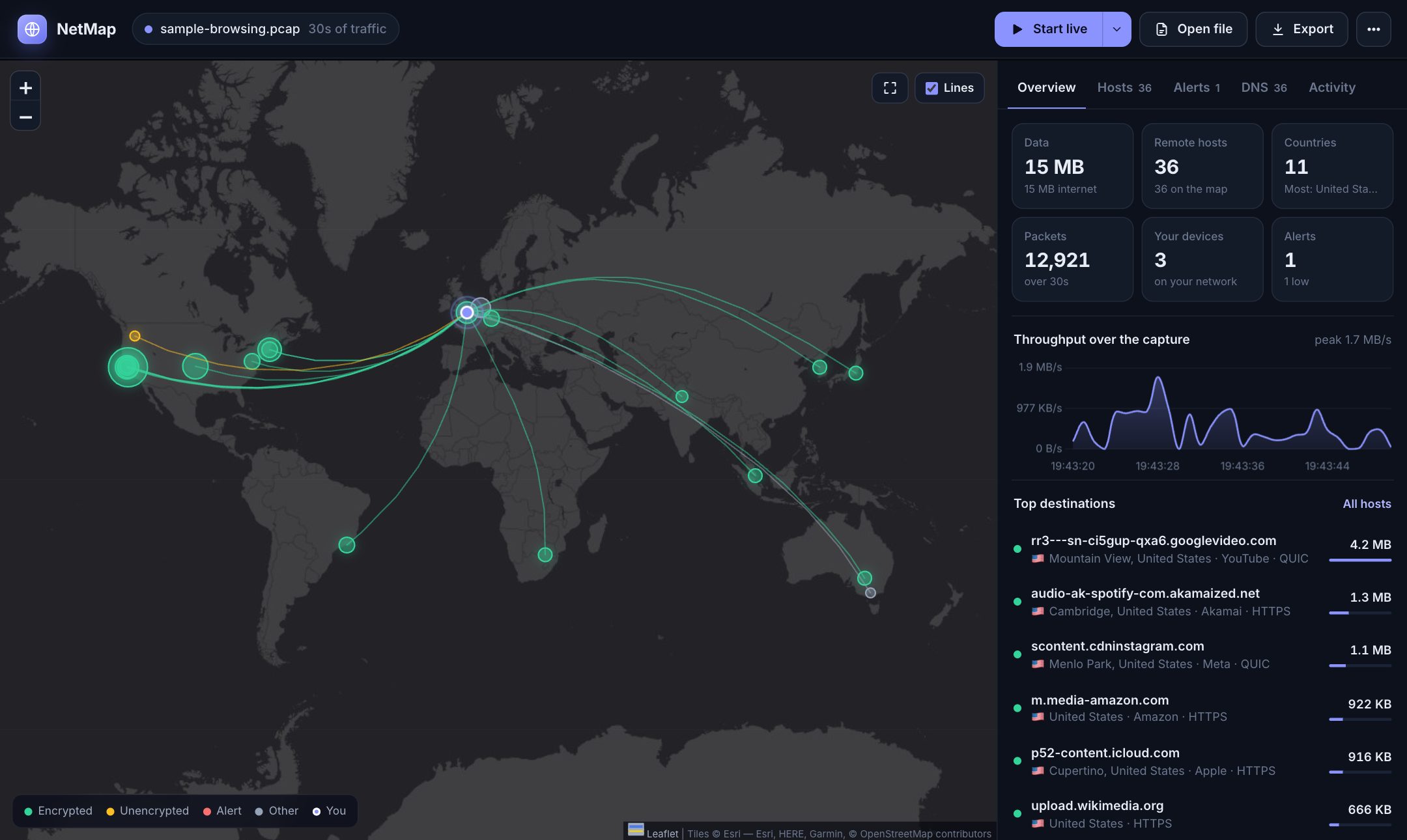
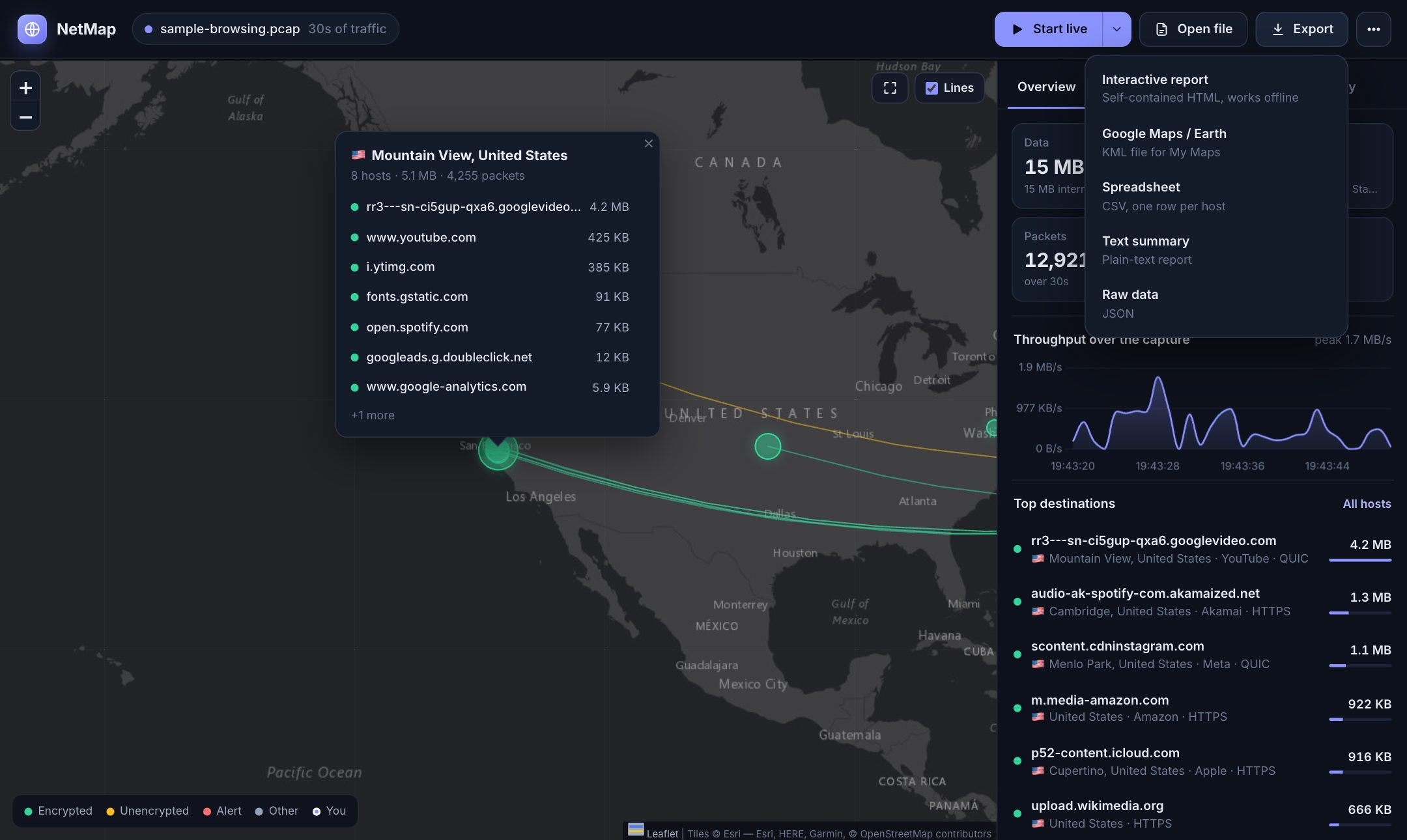
sample-browsing.pcap holds 30 seconds of a laptop and a phone browsing: 36 servers in 11 countries. Each circle is a location, sized by data. The lines start at "you", and colours show whether traffic is encrypted. The Overview tab has the key numbers, a throughput chart and the top destinations.
3. Hosts
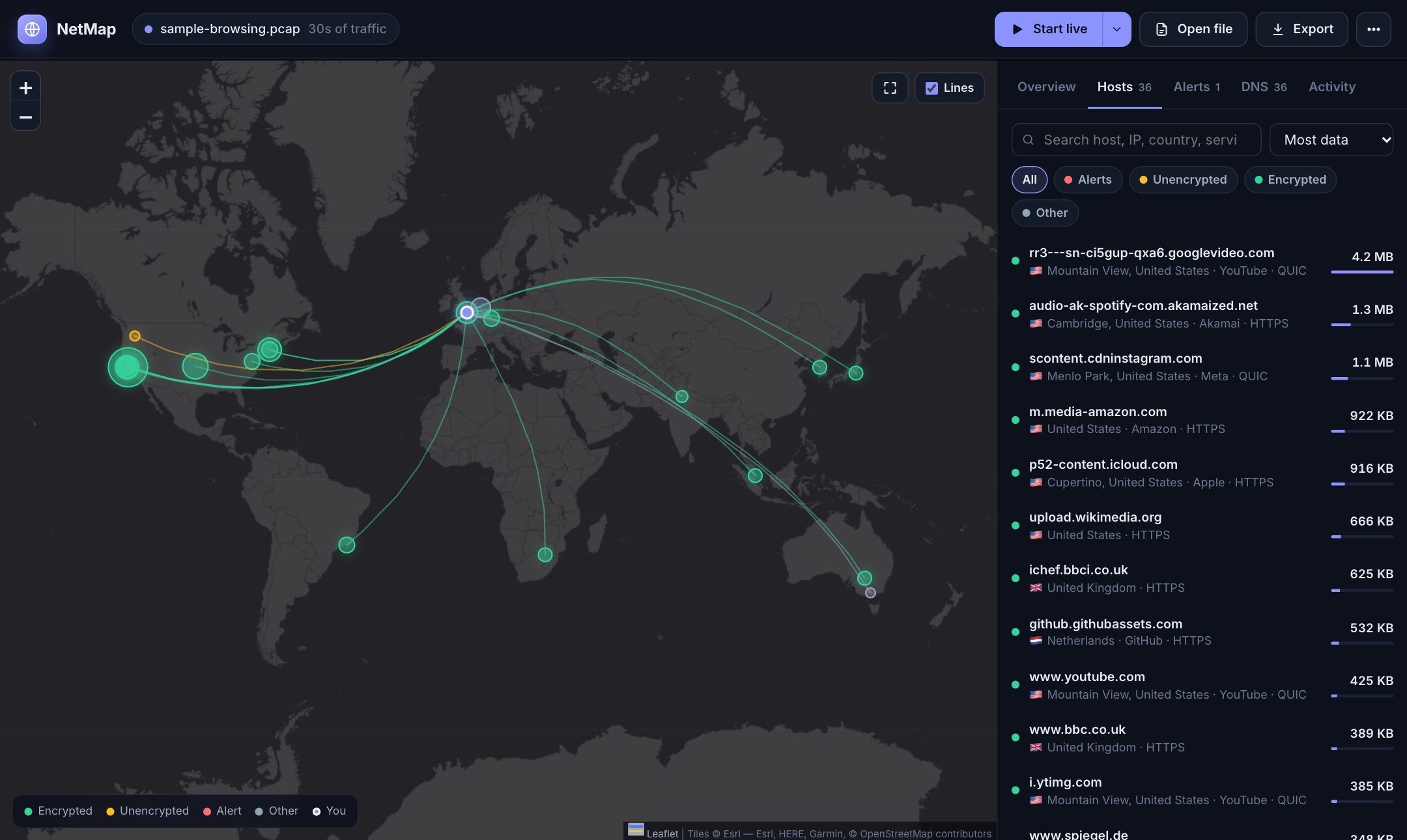
Every remote server, with its real name, location, organisation and service. You can search it, filter it by status, and sort it by data, packets, recency or name.
4. Host detail
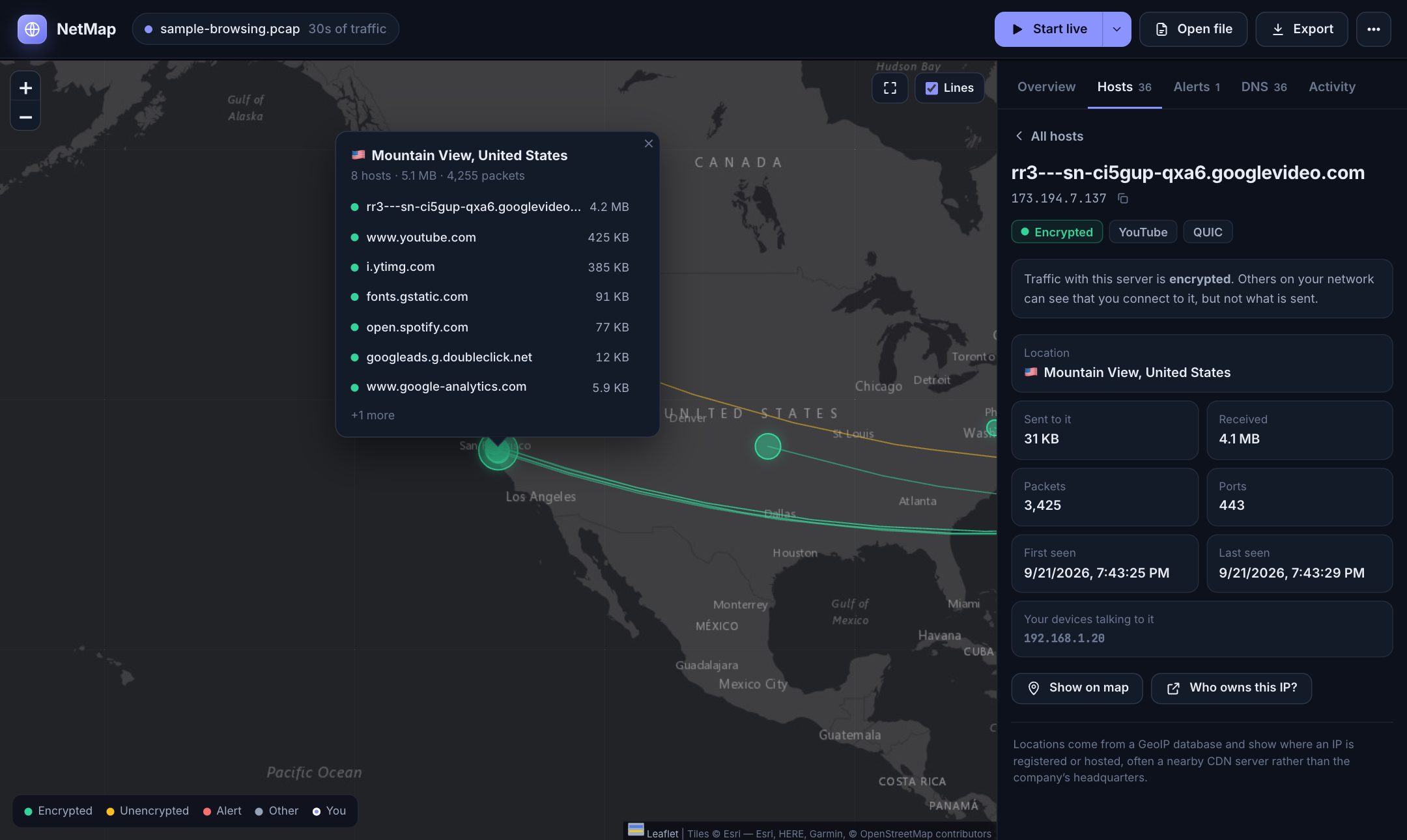
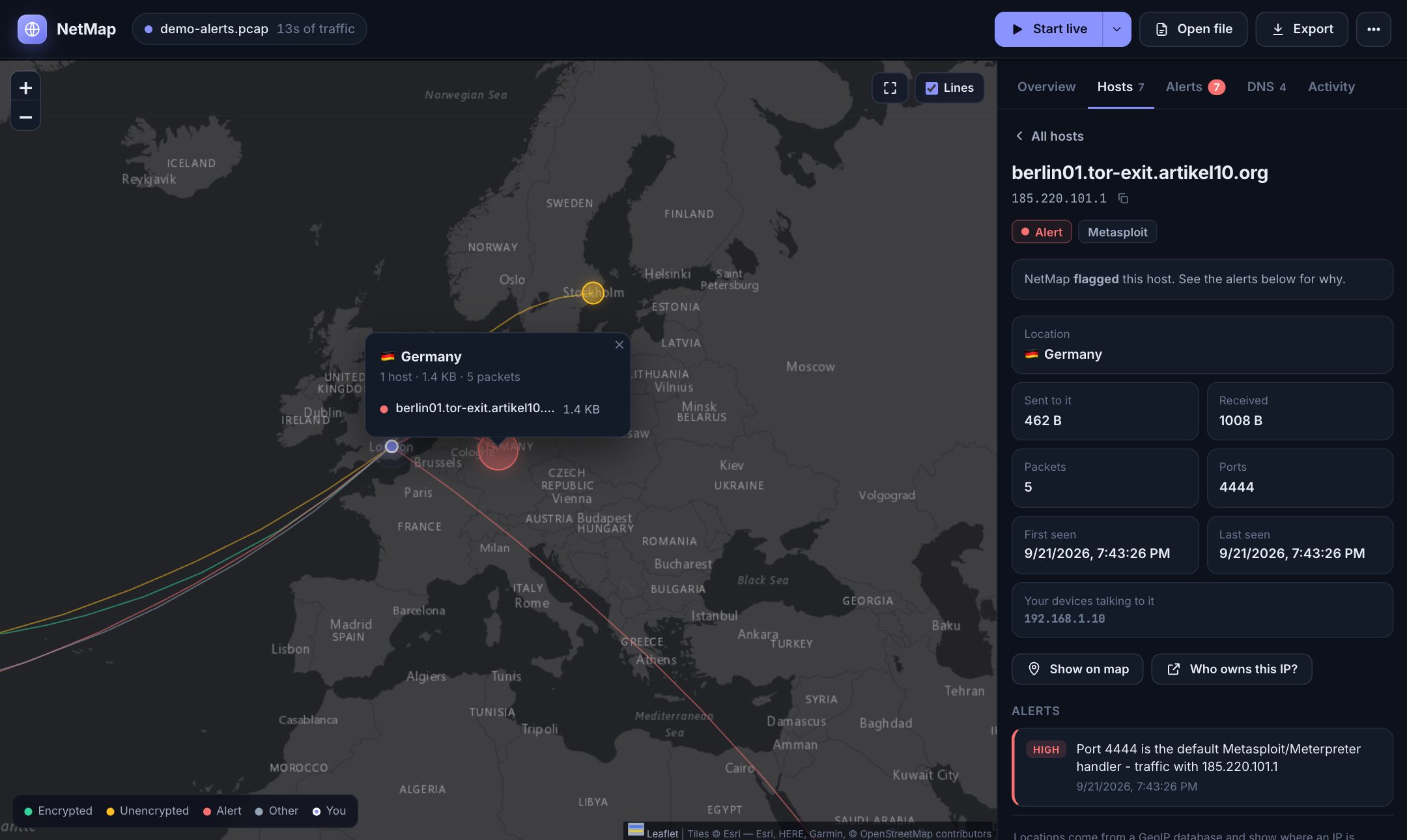
Click any host for the details: location, data sent and received, packets, ports, first and last seen, which of your devices talked to it, and a plain-English explanation. Clicking a map circle lists every host at that location.
5. DNS
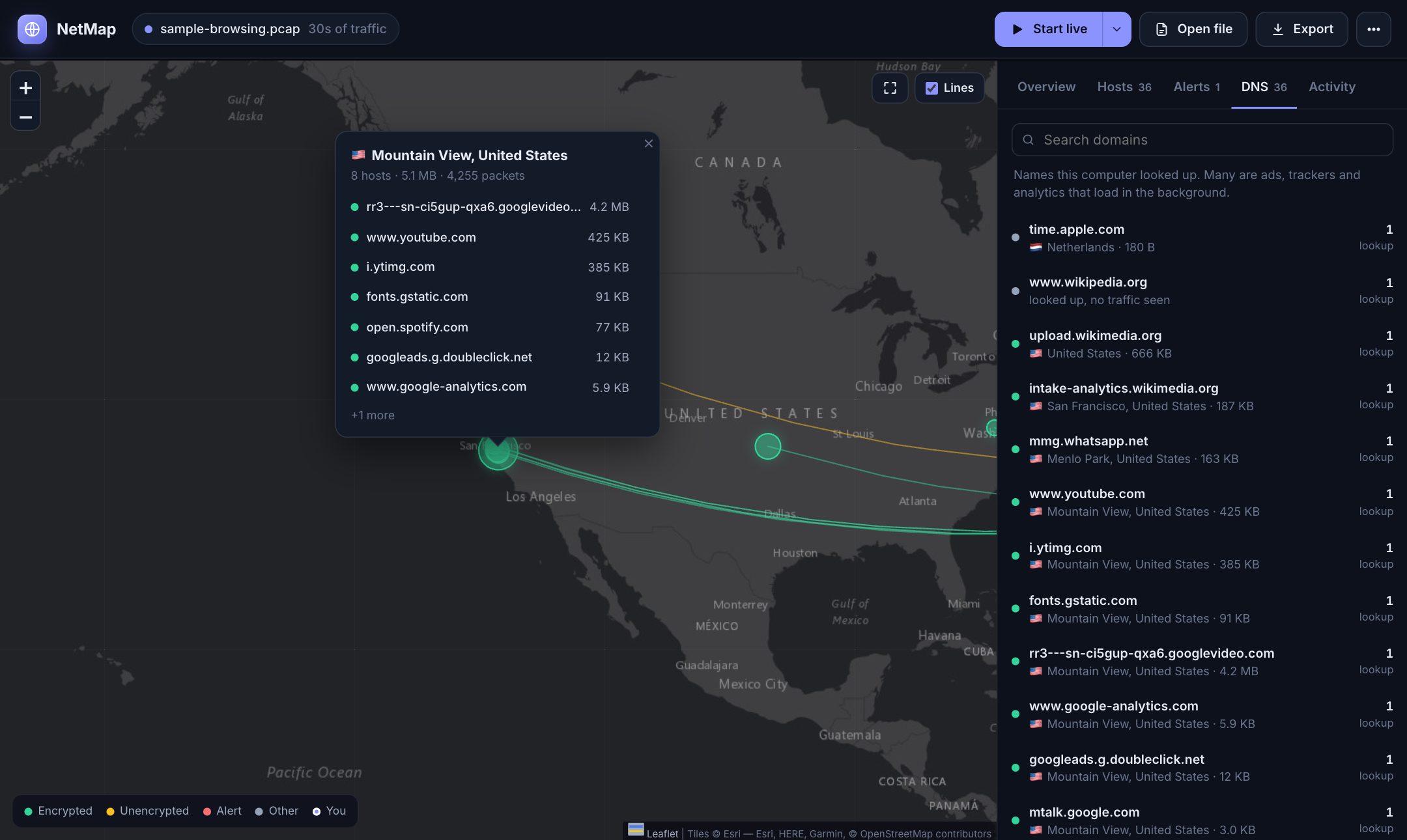
Every name your devices looked up. This is where background analytics and ad trackers show up.
6. Activity
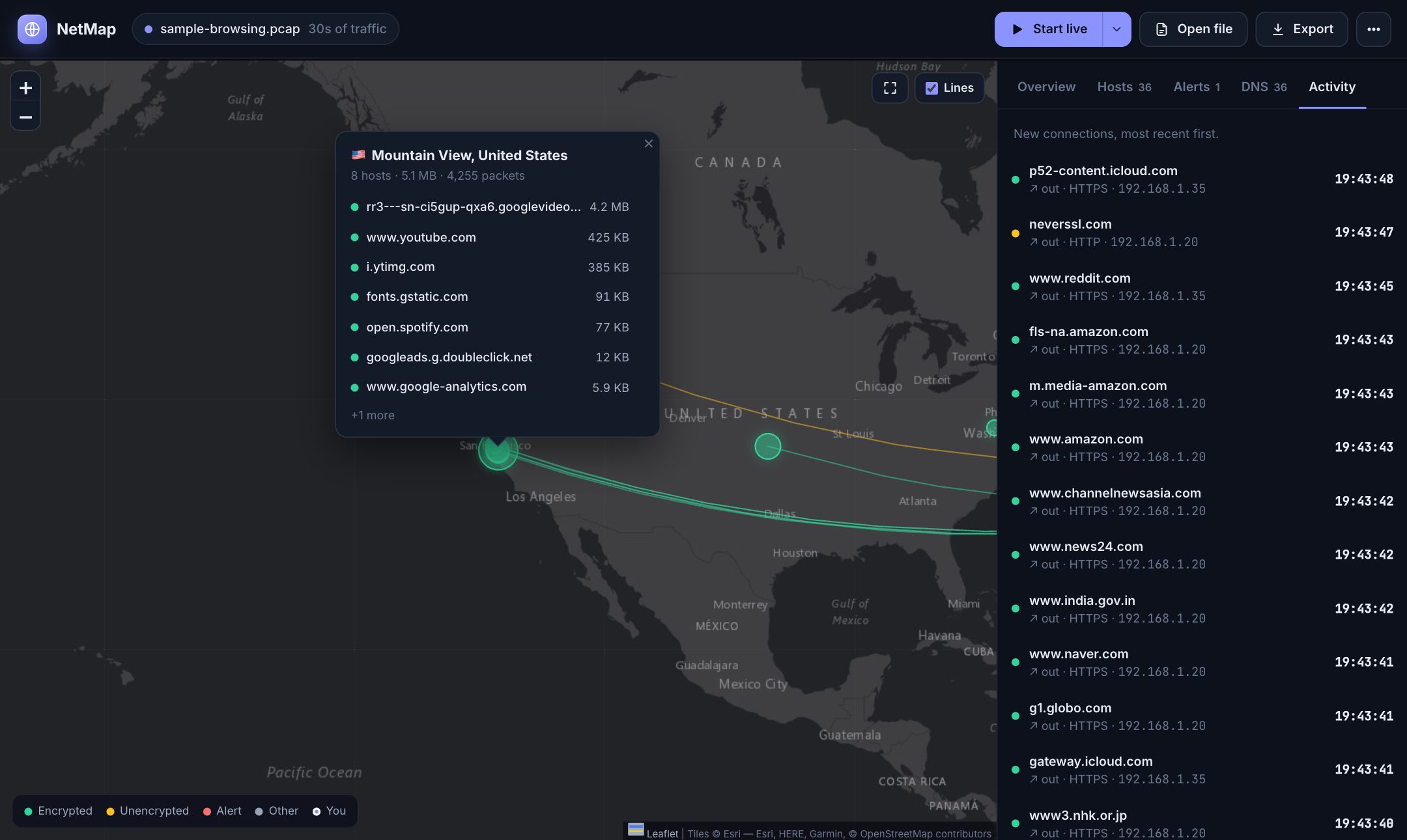
A feed of new connections, newest first. During live capture it fills up as you browse.
7. Security alerts
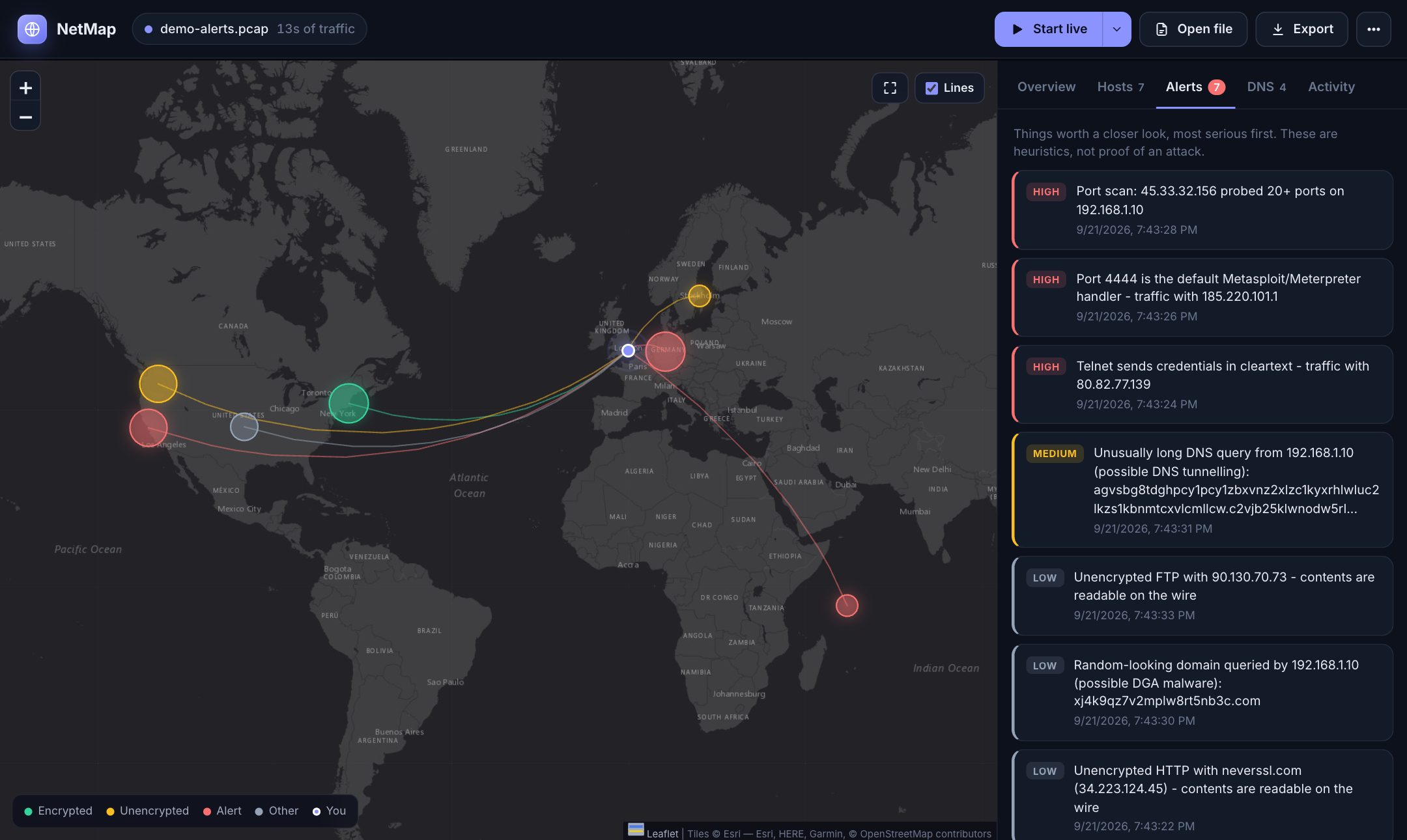
demo-alerts.pcap is built to trigger every alert type: a port scan, the Metasploit port 4444, Telnet, DNS tunnelling, a malware-style random domain, and unencrypted FTP and HTTP. The most serious are listed first, each explained in plain English.
Clicking an alert opens the host it's about:
8. Export
Share what you found as an offline interactive report, a KML for Google My Maps and Google Earth, a spreadsheet, a text summary or raw JSON.
Want to click around yourself? Open the live demo.